
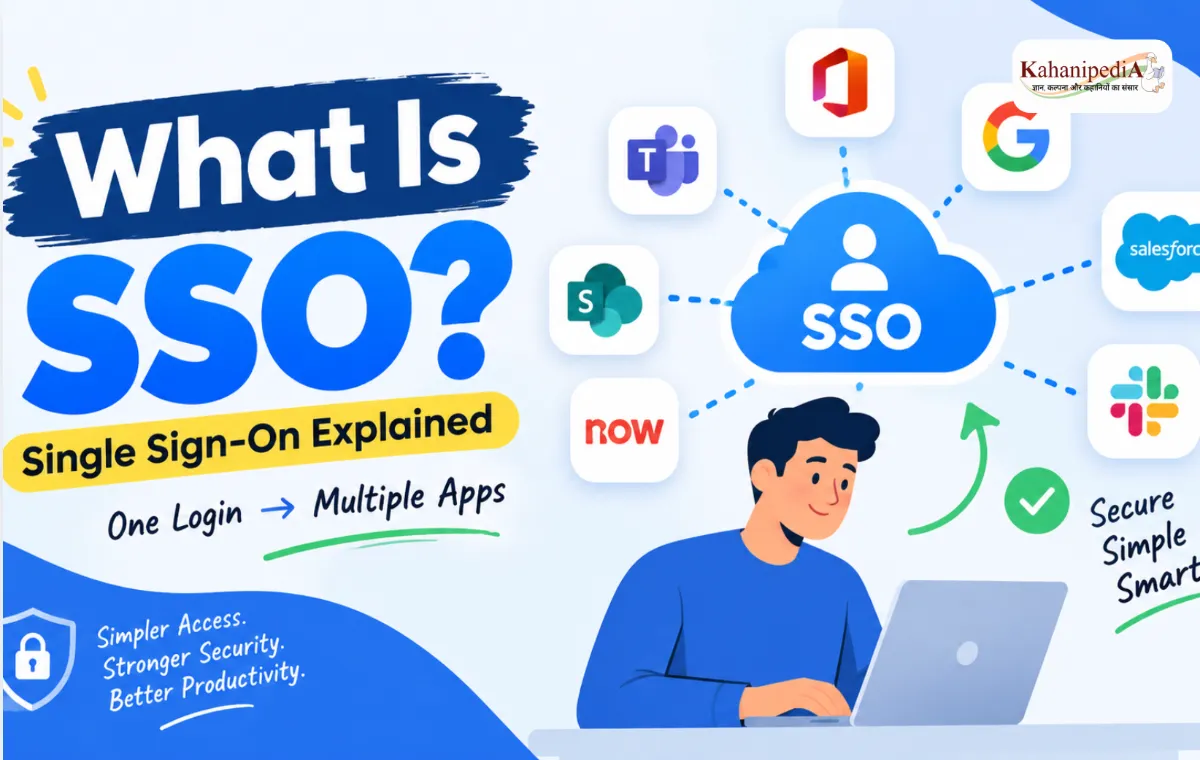
Remembering a different username and password for every application can quickly become frustrating. For businesses, it can also create extra work for IT teams and increase the risk of password-related security problems.
This is where SSO (Single Sign-On) comes in.
Single Sign-On allows users to sign in once and then access multiple applications without entering their login details again for every app.
For example, an employee may use email, Microsoft Teams, a CRM platform, HR software, project management tools, and other business applications during the day. With SSO, the employee can authenticate through one trusted identity provider and access the applications they are authorized to use.
In this guide, we’ll explain what SSO is, how it works, its benefits, different SSO methods, common protocols, and how organizations can plan an SSO setup.
What Is SSO?
SSO, or Single Sign-On, is an authentication method that allows users to access multiple applications using one set of login credentials.
Instead of signing in separately to every application, the user authenticates once through a central identity provider. After successful authentication, the identity provider tells the connected applications that the user has already been verified.
This means users don’t have to repeatedly enter their username and password throughout the day.
A simple example of SSO
Imagine you start your workday and sign in to your company’s account.
After signing in, you can open:
- Microsoft Teams
- Salesforce
- Slack
- HR software
- Project management tools
- Internal company applications
If these applications are connected to the same SSO system, you don’t need to enter your password every time you open one.
One login → multiple authorized applications.
That’s the basic idea behind Single Sign-On.
How Does SSO Work?
SSO works by moving the responsibility for user authentication to a trusted Identity Provider (IdP).
The identity provider verifies who the user is and provides the necessary authentication information to the application.
For example, Microsoft Entra ID can act as the identity provider for an organization.
The basic process looks like this:
| Step | What happens |
|---|---|
| 1. User opens an application | The user tries to access an SSO-enabled application. |
| 2. Application checks authentication | The application determines whether the user is already authenticated. |
| 3. User is sent to the identity provider | If authentication is needed, the application redirects the user to the identity provider. |
| 4. Identity is verified | The identity provider checks the user’s credentials and security requirements. |
| 5. Authentication information is returned | The identity provider sends a trusted response or token to the application. |
| 6. User gets access | The application verifies the response and allows access if the user is authorized. |
Once the user has an active SSO session, they can often move between assigned applications without having to authenticate again.
What Is an Identity Provider?
An Identity Provider (IdP) is a service that manages user identities and handles authentication.
Instead of every application maintaining its own login system, applications can rely on an identity provider to verify users.
Some common identity providers include:
- Microsoft Entra ID
- Okta
- Google Workspace
- Ping Identity
- OneLogin
For example, when Microsoft Entra ID is used as the identity provider, an organization can manage user identities and application access from a central location.
This gives IT teams greater control over who can access which applications.
Why Do Organizations Use SSO?
SSO is not only about making login easier. It can also simplify identity management and improve the overall security experience.
1. Fewer passwords to remember
Without SSO, employees may have separate passwords for dozens of applications.
With SSO, users can use one central identity to access multiple approved applications.
This reduces the number of credentials they need to remember.
2. Better user experience
Repeatedly entering passwords can slow employees down.
SSO removes much of this friction. Once users authenticate, they can move between connected applications more easily.
3. Centralized access management
IT administrators can manage application access from a central identity platform.
When an employee joins the organization, administrators can provide access to the applications they need.
When someone leaves the organization, access can be removed centrally.
4. Better security controls
A centralized identity system can make it easier for organizations to apply consistent security policies.
Depending on the identity platform and configuration, organizations may use features such as:
- Multi-factor authentication (MFA)
- Conditional access policies
- Device-based controls
- Risk-based authentication
- Centralized identity monitoring
5. Fewer password-related support requests
Forgotten passwords and account lockouts can create unnecessary work for help desks.
Reducing the number of separate application passwords can reduce some of these support issues.
Benefits of SSO for Different Users
SSO can provide value to several groups, but the benefits are slightly different depending on the role.
| User group | Main benefits |
|---|---|
| Employees | Fewer logins and a smoother application experience |
| IT administrators | Centralized identity and access management |
| Security teams | Consistent authentication and security policies |
| Application developers | Easier integration with enterprise identity systems |
| SaaS providers | Better enterprise compatibility and easier customer onboarding |
| Business owners | Improved productivity and potentially lower support costs |
SSO for Software Vendors and Developers
SSO is particularly important for Independent Software Vendors (ISVs) that sell applications to businesses.
Enterprise customers often expect business applications to integrate with their existing identity infrastructure.
If a SaaS application supports SSO, customers can connect it with their identity provider instead of creating and maintaining another set of usernames and passwords.
Why SSO matters for SaaS applications
Easier enterprise adoption
Large organizations often have established identity and security requirements.
Supporting SSO can make an application easier to introduce into an enterprise environment.
Faster onboarding
Customers don’t necessarily need to create separate credentials for every employee.
They can connect the application to their existing identity system and manage access through it.
Better user management
The customer’s identity provider can remain the main source of user identity.
This can reduce the need for application providers to manage passwords themselves.
Competitive advantage
SSO is frequently an important requirement when companies evaluate business software.
An application without SSO may have difficulty meeting the requirements of larger customers.
SSO for Employees and End Users
For employees, the biggest advantage is convenience.
Instead of remembering different passwords for every business application, users can authenticate through their organization’s identity provider.
For example:
Without SSO:
Email → Login
CRM → Login
HR System → Login
Project Tool → Login
Internal App → Login
With SSO:
Organization Account → SSO → Multiple Applications
The user still needs permission to access each application. SSO does not mean that signing in once automatically gives access to every application in the organization.
The user must still be assigned or authorized to use each application.
Different Types of SSO
There isn’t only one way to implement Single Sign-On.
The right approach depends on the application, its authentication capabilities, where it is hosted, and the organization’s requirements.
Microsoft Entra ID supports several SSO approaches.
| SSO method | Best suited for | Key point |
|---|---|---|
| Federation-based SSO | Modern and enterprise applications | Uses protocols such as SAML and OIDC |
| Password-based SSO | Applications that don’t support federation | Credentials are securely managed and used for sign-in |
| Linked SSO | Application migration scenarios | Provides application links but isn’t true SSO |
| Disabled SSO | Testing or unsupported scenarios | Users sign in separately |
Let’s look at each option.
1. Federation-Based SSO
Federation-based SSO is one of the most common approaches for modern applications.
In this setup, the application trusts an identity provider to authenticate users.
The identity provider verifies the user and sends authentication information to the application using a standard protocol.
Two important protocols are:
- SAML 2.0
- OpenID Connect (OIDC)
SAML 2.0
SAML (Security Assertion Markup Language) 2.0 is a widely used standard for exchanging authentication and identity information between an identity provider and an application.
SAML has been used extensively in enterprise environments and is supported by many business applications.
A typical SAML flow looks like this:
User
  ↓
Application
  ↓
Identity Provider
  ↓
User Authentication
  ↓
SAML Response
  ↓
Application
  ↓
Access Granted
When is SAML useful?
SAML can be a good choice when:
- You’re integrating with traditional enterprise applications.
- Your customers already use SAML.
- The application requires detailed identity attributes.
- Broad enterprise compatibility is important.
OpenID Connect (OIDC)
OpenID Connect, commonly called OIDC, is an authentication protocol built on top of OAuth 2.0.
It uses JSON-based tokens and is widely used in modern application development.
OIDC is particularly useful for:
- Modern web applications
- Mobile applications
- Single-page applications
- APIs and services
- Cloud-native applications
A simplified OIDC flow looks like this:
User
  ↓
Application
  ↓
Identity Provider
  ↓
Authentication
  ↓
OIDC Tokens
  ↓
Application
  ↓
Access
SAML vs OIDC: What’s the Difference?
Both SAML and OIDC can be used for SSO, but they are designed around different technologies and use cases.
| Feature | SAML | OIDC |
|---|---|---|
| Format | XML | JSON |
| Built on | SAML framework | OAuth 2.0 |
| Common use | Enterprise and traditional web applications | Modern web, mobile and cloud applications |
| Tokens/data | SAML assertions | ID tokens and access tokens |
| Developer experience | Can be more complex | Often simpler for modern development |
| Enterprise support | Very broad | Increasingly broad |
Which one should you choose?
There isn’t a universal winner.
For developers: OIDC can be a natural choice for modern applications, while SAML remains important when enterprise compatibility is a priority.
For administrators: The best choice often depends on what the application supports and what is already being used in the organization’s identity environment.
2. Password-Based SSO
Not every application supports modern federation protocols.
Some applications still rely on a traditional username-and-password login.
Password-based SSO can help in these situations.
With this approach, the identity platform securely stores the application’s credentials and can provide them when the user launches the application.
This can be useful for older applications that don’t support protocols such as SAML or OIDC.
For on-premises applications, Microsoft Entra Application Proxy can also help organizations publish applications for users who need remote access.
Important point
Password-based SSO is different from federation-based SSO.
With federation, the application trusts the identity provider to authenticate the user.
With password-based SSO, the application still uses its own username and password system, while the identity platform helps automate the sign-in.
3. Linked SSO
Linked SSO is useful when an organization is moving an application toward a full SSO setup.
It can provide users with a link to an application through an application portal.
However, linked SSO is not true authentication-based SSO.
Users may still need to sign in separately when they open the application.
It is mainly useful as a temporary or migration-friendly approach.
4. Disabled SSO
When SSO is disabled, users authenticate directly with each application.
This can make sense when:
- An application doesn’t support SSO.
- You’re testing an application.
- SSO isn’t required for a particular application.
- The application has a separate authentication requirement.
In this setup, there is no centralized SSO experience for that application.
How SSO Works with Microsoft Entra ID
Microsoft Entra ID can act as the central identity provider for an organization’s applications.
A simplified example looks like this:
                 Microsoft Entra ID
                        │
        ┌───────────────┼───────────────┐
        ↓               ↓               ↓
      CRM             HR App        SaaS App
        │               │               │
        └──────────── User ─────────────┘
The user authenticates with Microsoft Entra ID, and connected applications can rely on that authentication.
The basic process
Step 1: The user opens an application
The user selects an application they have been assigned.
Step 2: The application checks authentication
If the user doesn’t have an active authenticated session, the application redirects them to Microsoft Entra ID.
Step 3: Microsoft Entra ID verifies the user
The user completes the required authentication process.
This could include a password, MFA, or other security checks depending on the organization’s configuration.
Step 4: Microsoft Entra ID sends authentication information
After successful authentication, Microsoft Entra ID provides the application with the required identity information.
Step 5: The application grants access
The application validates the response and checks whether the user is allowed to access it.
If everything is valid, the user gets access.
SSO Does Not Mean Unlimited Access
This is an important point that is sometimes misunderstood.
SSO does not mean that one login gives a user access to every application.
Authentication answers:
Who are you?
Authorization answers:
What are you allowed to access?
For example, an employee may sign in through Microsoft Entra ID but only have access to the CRM and HR application.
They may not have permission to access financial or administrative applications.
So, SSO simplifies authentication, while application assignments and access policies help control authorization.
SSO and MFA: Are They the Same?
No.
SSO and MFA solve different problems.
SSO reduces the number of times users need to sign in.
MFA adds additional verification when users authenticate.
For example:
Username + Password
        +
Phone Verification
        ↓
   Authentication
        ↓
   Multiple Apps
An organization can use SSO and MFA together.
In fact, combining centralized authentication with strong authentication methods can provide both a better user experience and stronger security controls.
SSO in Cloud, On-Premises, and Hybrid Environments
Where an application runs can affect how SSO is implemented.
Cloud applications
Cloud-based SaaS applications commonly support federation protocols such as:
- SAML
- OIDC
These applications can connect directly to the organization’s identity provider.
On-premises applications
Older on-premises applications may not support modern authentication protocols.
Organizations may use options such as password-based SSO or Application Proxy, depending on the application and architecture.
Hybrid environments
Many organizations operate both cloud and on-premises applications.
In this situation, different applications may use different SSO methods.
| Environment | Possible SSO approach |
|---|---|
| SaaS application | SAML or OIDC |
| Modern cloud application | OIDC or SAML |
| Older application | Password-based SSO |
| On-premises application | Federation or Application Proxy-based approach |
| Application being migrated | Linked SSO |
The goal is not necessarily to force every application into the same method. Instead, organizations should choose the approach that fits each application’s technical and security requirements.
My Apps Portal and SSO
Users need an easy way to find the applications assigned to them.
The Microsoft My Apps portal provides a centralized place where users can see and launch applications available to them.
Instead of searching for different application URLs, users can open the portal and select the application they need.
If the application is configured for SSO and the user already has an authenticated session, they may be able to open it without entering their credentials again.
This creates a more convenient application access experience.
How to Plan an SSO Deployment
Implementing SSO across an organization requires more than simply turning on a setting.
IT and security teams should first understand their application environment.
1. Create an application inventory
List the applications employees currently use.
Include:
- Application name
- Application owner
- Number of users
- Hosting location
- Current authentication method
- SSO support
- Business importance
2. Check application compatibility
Find out which SSO protocols each application supports.
For example:
| Application capability | Possible approach |
|---|---|
| Supports SAML | Use SAML federation |
| Supports OIDC | Use OIDC |
| Supports neither | Consider password-based SSO or another supported method |
| Being replaced or migrated | Consider a temporary linked experience |
3. Decide who needs access
Not every employee needs every application.
Define which users, groups, or roles should have access to each application.
4. Plan security policies
Consider requirements such as:
- MFA
- Conditional access
- Device compliance
- User risk
- Sign-in monitoring
- Access reviews
5. Test before a full rollout
Start with a smaller group of users.
Testing can help identify:
- Incorrect configuration
- Missing permissions
- Attribute mapping problems
- Login issues
- Application compatibility problems
Once the setup works correctly, expand the rollout.
Common SSO Challenges
SSO can simplify identity management, but it isn’t completely automatic.
Organizations may face challenges such as:
Application compatibility
Some older applications don’t support modern SSO protocols.
Incorrect configuration
Small configuration errors can prevent users from signing in.
User provisioning
SSO authenticates users, but organizations may still need a separate process for creating, updating, or removing user accounts in applications.
Access management
Users should receive only the applications they actually need.
Certificate and configuration management
Some federation setups require certificates and other configuration details to be maintained properly.
Migration complexity
Moving a large application portfolio to SSO can take time, especially when applications use different authentication technologies.
Best Practices for SSO
A good SSO deployment should focus on both security and usability.
Here are some practical best practices:
- Start with an application inventory.
- Prefer modern federation protocols when applications support them.
- Use MFA with centralized authentication where appropriate.
- Give users only the application access they need.
- Test SSO with a small group before a wider rollout.
- Have a recovery plan for authentication problems.
- Monitor sign-in activity and failed authentication attempts.
- Review application access regularly.
- Keep federation certificates and configurations up to date.
- Document the SSO configuration for each important application.
SSO vs Traditional Login
The difference becomes easier to understand when we compare the two approaches.
| Traditional login | SSO |
|---|---|
| Separate login for each application | One central authentication experience |
| Multiple passwords may be required | Fewer credentials for users to manage |
| Applications may manage their own passwords | Identity provider handles authentication |
| Access management can be spread across applications | Access can be managed more centrally |
| More password-related support requests may occur | Can reduce some password-related issues |
| User experience can be fragmented | More consistent sign-in experience |
Is SSO Secure?
SSO can improve security when it is implemented correctly, but it isn’t automatically secure simply because it is SSO.
Because multiple applications can depend on one identity provider, protecting the central identity account becomes especially important.
Organizations should consider security controls such as:
- Multi-factor authentication
- Strong authentication policies
- Conditional access
- Least-privilege access
- Regular access reviews
- Sign-in monitoring
- Secure application configuration
A well-designed SSO environment can reduce password exposure across individual applications while giving security teams greater visibility and control.
SSO vs Password Manager
SSO and password managers can look similar because both can reduce the number of passwords users need to remember, but they work differently.
| SSO | Password Manager |
|---|---|
| Centralizes authentication | Stores and manages passwords |
| Applications can trust an identity provider | Credentials are typically used to sign in to applications |
| Common in enterprise environments | Useful for many types of accounts |
| Often uses SAML or OIDC | Usually fills saved credentials |
| Central access policies can be applied | Focuses primarily on credential management |
Organizations may use both technologies depending on their needs.
Final Thoughts
SSO makes application access simpler by allowing users to authenticate through a central identity provider instead of signing in separately to every application.
For employees, this can mean fewer passwords and a smoother login experience. For IT teams, it can provide more centralized control over identity and application access. For SaaS providers and developers, supporting SSO can make applications easier to integrate into enterprise environments.
Microsoft Entra ID supports several approaches, including SAML-based SSO, OpenID Connect, password-based SSO, and linked application experiences. The best option depends on the application’s technology, hosting environment, security requirements, and business needs.
The most important thing to remember is simple:
SSO centralizes authentication so users can access multiple authorized applications with a simpler sign-in experience.
When combined with strong authentication, appropriate access controls, and regular monitoring, SSO can become an important part of a modern identity and access management strategy.